FREE Built for the M5 Pro & M5 Max MacBook Pro

Every sensor on your Mac, in the menu bar.

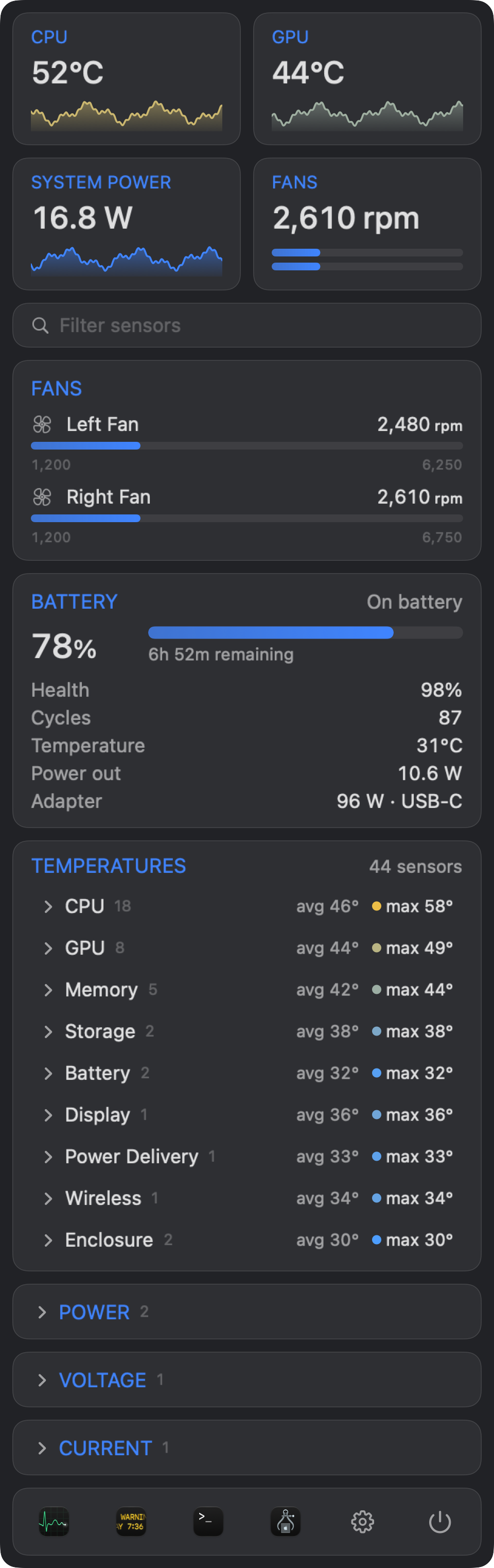
Like iStat Menus, rebuilt for the newest MacBook Pro — and free. XDRStat shows CPU and GPU load per cluster, memory pressure, network traffic and more than 270 temperature, fan and power sensors, including the new M5 sensors other monitors don't read yet.

Free Signed & notarized by Apple macOS 15 or later
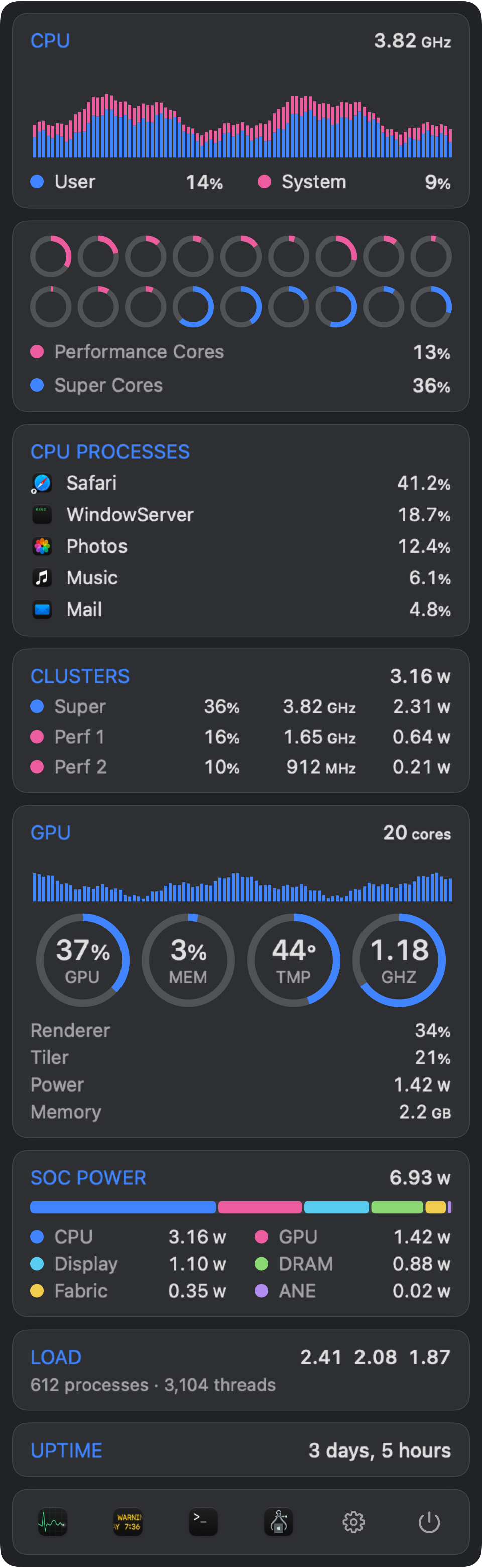
XDRStat CPU panel: usage history, per-core rings, top processes, clusters and GPU
270+temperature sensors, named
18 coresSuper & Performance, per cluster
Per-clusterfrequency and power, live
~30 MBof memory, about 2% CPU
Four panels

One click from anything you want to know.

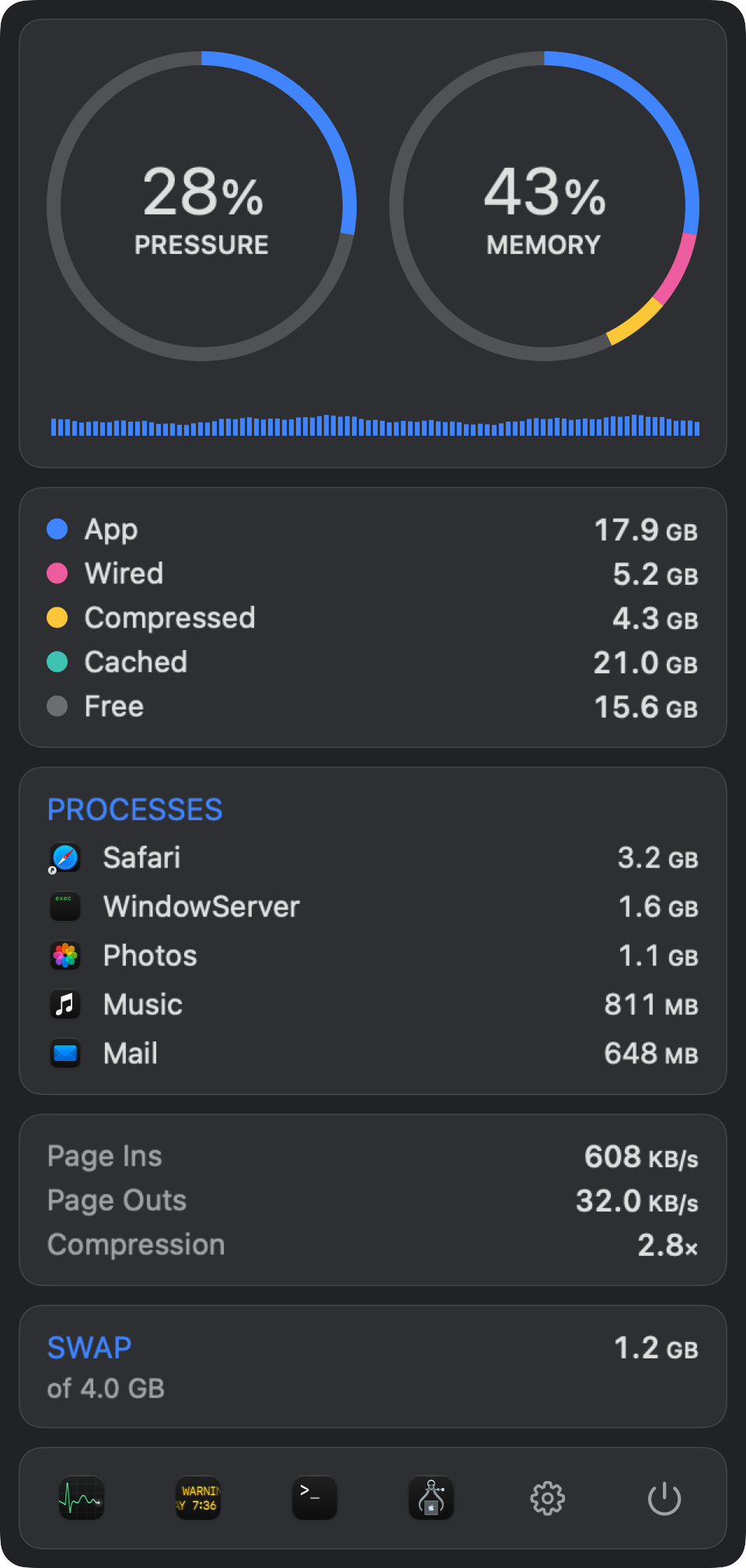
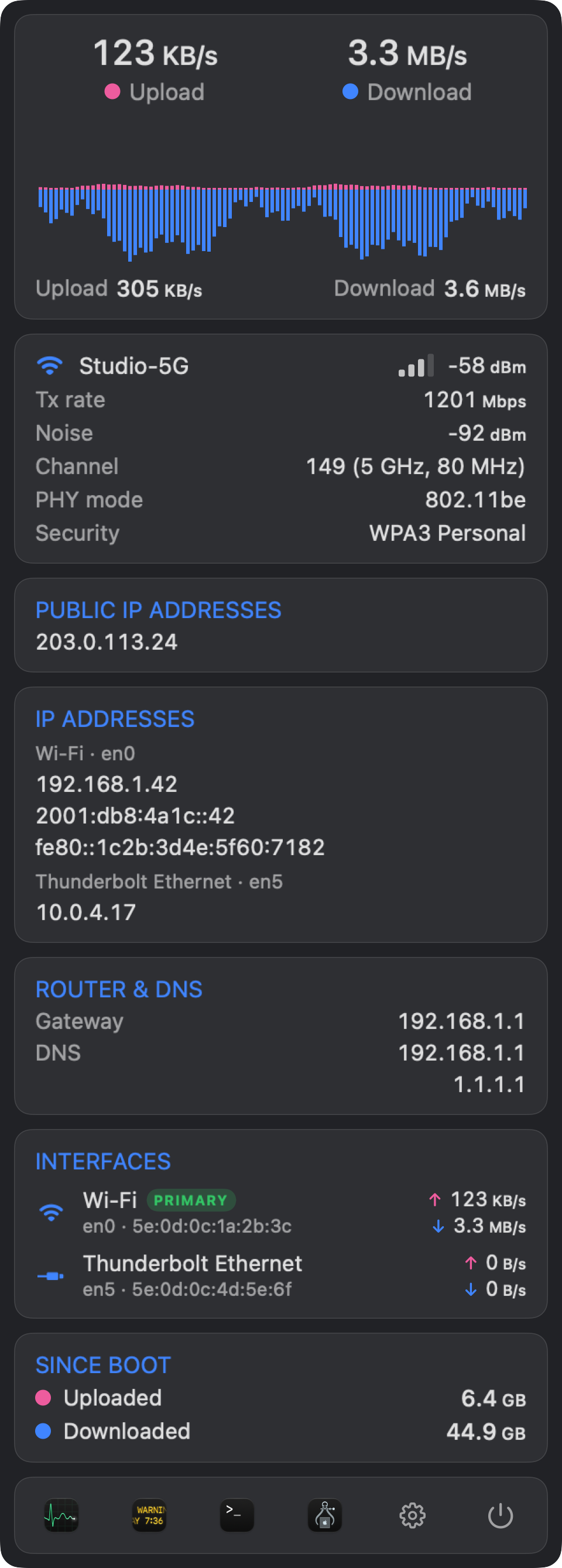
Each menu bar item opens a detailed panel. Turn on just the ones you want; they update every second and cost almost nothing while closed.

CPU and GPU panel
CPU & GPU

See all three clusters work.

The M5 splits its CPU into a Super cluster and two Performance clusters. XDRStat shows each one separately, straight from the chip's own counters.

  • User and system history, plus a ring for every one of the 18 cores
  • Live frequency and power for each cluster, from Apple's IOReport counters
  • GPU load, frequency, temperature, power and memory
  • SoC power breakdown: CPU, GPU, DRAM, display, fabric, Neural Engine
  • Top processes, grouped by app with their real icons
Details

Made to stay out of the way.

Light on resources

Detailed sampling only runs while a panel is open. Idle cost is around 1–2% of one core.

Private by design

No accounts, no analytics, no network calls — except an optional public IP lookup you turn on yourself.

Signed and notarized

Signed with a Developer ID and notarized by Apple, so it opens without Gatekeeper warnings.

Feels native

Light and dark menu bars, menu-style vibrancy, Escape to close, and no Dock icon.

Your menu bar, your way

Graph, text or compact styles, °C or °F, update interval from half a second to five, and launch at login.

Open source

Every line is on GitHub — read how each number is measured, or build it yourself with just the Command Line Tools.

XDRStat app icon

Get XDRStat

Free — no trial, no subscription, no account. Built for the M5 Pro and M5 Max MacBook Pro.

Download XDRStat
Signed & notarized · Apple Silicon · macOS 15+ · All releases
1. Open the disk imageDouble-click XDRStat.dmg once it downloads.
2. Drag to ApplicationsDrop XDRStat onto the Applications shortcut.
3. Launch itIts items appear in your menu bar. Use the gear in any panel for settings.
FAQ

Questions

How is it different from iStat Menus?

If you've used iStat Menus, you'll feel at home: compact menu bar items that open into detailed panels. XDRStat is built specifically for the latest MacBook Pro — it understands the M5's Super and Performance core clusters and reads its full set of sensors, many of which other monitors don't support yet — and it's completely free and open source. iStat Menus covers more Macs and adds extras like disk, weather and time; XDRStat focuses on CPU, GPU, memory, network and sensors.

Which Macs does it support?

XDRStat is built and tested for the 2026 MacBook Pro with M5 Pro or M5 Max. Memory, network, GPU and battery work on any Apple Silicon Mac, but core labels, per-cluster frequency/power and sensor names are tuned to the M5 Pro/Max and may be incomplete elsewhere. Intel Macs aren't supported.

Why isn't it on the Mac App Store?

Reading temperatures, fans and per-cluster power means talking to the Mac's System Management Controller and Apple's performance counters. App Store apps must run in a sandbox that doesn't allow that — which is why monitors like this are distributed directly. XDRStat is still signed with a Developer ID and notarized by Apple.

Does it need admin rights or a helper tool?

No. Everything it shows is readable by a normal user process. There's no privileged helper, kernel extension or password prompt.

Why does it ask for Location access?

It only asks if you click "Show network name" in the Network panel. macOS hides the Wi‑Fi network name from apps without Location access. XDRStat never reads your location.

Does it send any data anywhere?

No analytics, no telemetry. The only network request is the optional public IP lookup (to api.ipify.org), which is off until you enable it in Settings.

How do I uninstall it?

Turn off "Launch at login" in Settings, quit it with the power button in any panel, and drag XDRStat from Applications to the Trash.